
When a Portfolio Manager submits a request to sell a Non-Core Position, Investment Advisors/Wealth Planners will receive an email notification with a link to the ticket. You can also access these tickets in the Practice Management Dashboard.
Below is a step-by-step walkthrough of the review process.
How to review Non-Core Securities Sell Requests
To review and action Non-Core Securities Sell Requests:
- Click on the link in the email you receive to open the ticket. Its status will be Review of Positions to be Sold.
- Navigate to the Actions menu in the top right of the ticket.
Result: You’ll see a dropdown menu with two options – either Confirm or Reject.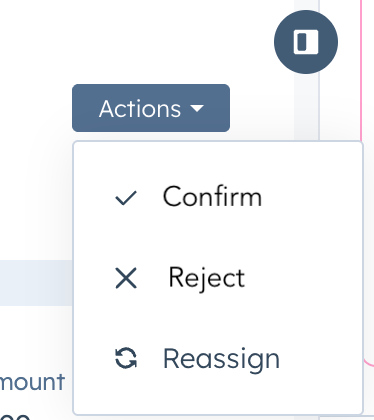
- Select an option from the dropdown menu.
- If you select Confirm, you’ll need to type the word ‘approved’ in the text box to approve the request.
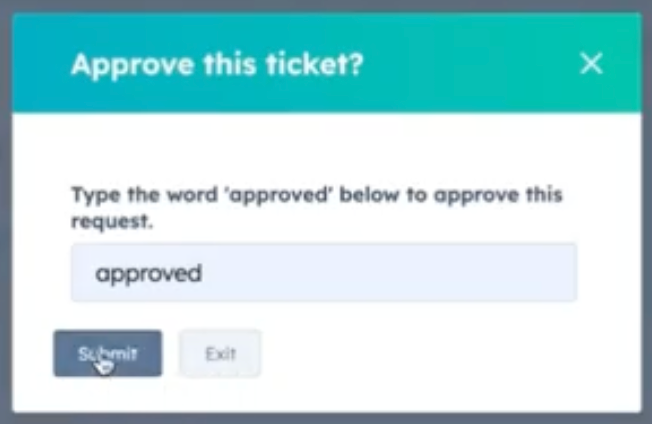
Click Submit. The status of the ticket will change to Positions to be sold and sent to Compliance for review. - If you select Reject, you’ll see a text box with the following warning: “You’re about to reject this ticket. Please provide a reason below. Rejected tickets can’t be restored and will not be actioned further.”
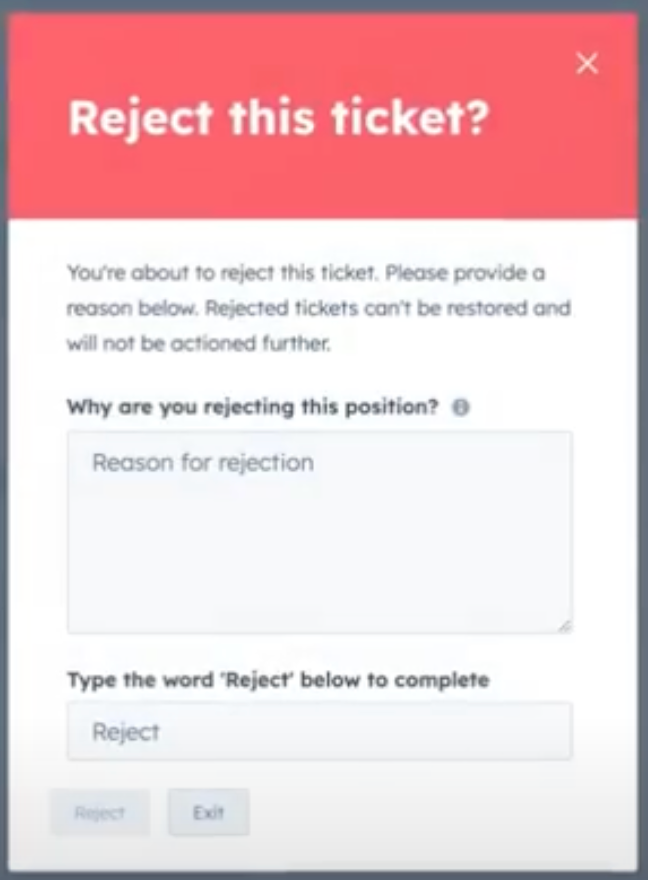
Enter the reason for the rejection and type the word ‘Reject’ in the text boxes that appear. Click Reject, and the ticket status will update to Rejected.
- If you select Confirm, you’ll need to type the word ‘approved’ in the text box to approve the request.
How to view Sell Out Dates for Non Core Positions
You can view sell out dates for all Non Core Positions in the Non-Core Sell Out Dates Report on your Client Overview and Book Analysis Dashboard.
To view the report:
- Navigate to the Reporting icon in the CRM and click on Dashboards.
- The Client Overview and Book Analysis Dashboard should appear by default. If not, you can change dashboards by clicking on the title.
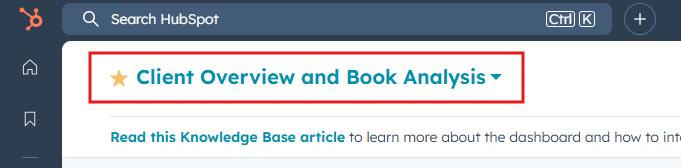
- The Non-Core Sell Out Dates Report appears at the bottom of the dashboard.
